
Download GFI Backup – Secure Backup & Sync Tool for Windows
Overview
GFI Backup is a comprehensive backup and syncing utility designed for Windows users who want a reliable, automated way to protect their most valuable data. Whether you are safeguarding personal photos, critical work documents, or intricate system settings, GFI Backup gives you the confidence that a copy exists in a safe location, ready to be restored at a moment’s notice. The program supports a wide range of backup sources, from individual files and folders to entire email archives, registry keys, and custom user settings.
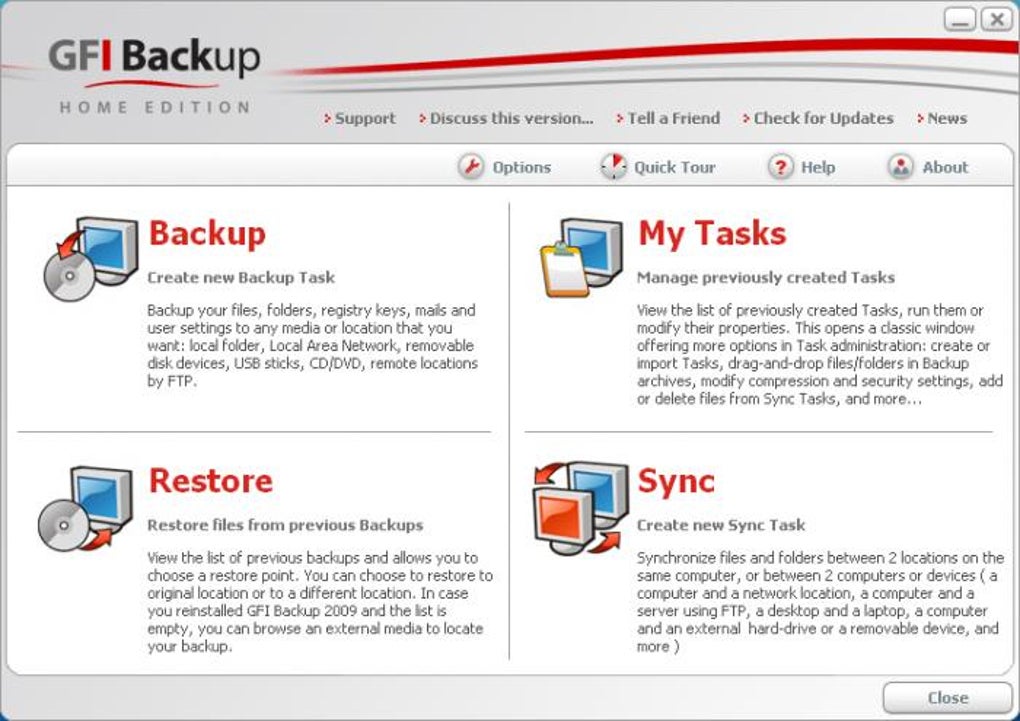
What sets GFI Backup apart is its flexibility in destination choices – you can store backups on external hard drives, USB flash drives, network shares, optical media, or even remote FTP servers. Built‑in compression reduces the storage footprint, while AES‑256 encryption ensures that sensitive information remains unreadable to prying eyes. The user interface is intentionally straightforward: a clean dashboard lets you create, schedule, and monitor backup jobs with just a few clicks.
A dedicated sync module mirrors the contents of two folders, keeping them perfectly aligned without the need for manual copying. Alerts and logs keep you informed of any issues, and the scheduler can run jobs at hourly, daily, or weekly intervals, guaranteeing that new or modified files are captured automatically. In short, GFI Backup combines powerful features, strong security, and an intuitive workflow into a single, free tool that can dramatically lower the risk of data loss caused by hardware failure, accidental deletion, or ransomware attacks.
Key Features
- Full‑system backup: files, folders, email (Outlook PST), registry keys, and user profiles.
- Multiple destination support – external HDD, USB stick, network share, CD/DVD, or remote FTP.
- Built‑in compression to save disk space and faster transfer times.
- AES‑256 encryption for secure storage of sensitive data.
- Flexible scheduling: hourly, daily, weekly, or custom intervals.
- Automatic error detection with real‑time alerts and detailed logs.
- Two‑way folder syncing module to keep directories in perfect sync.
- Simple, wizard‑driven interface suitable for beginners and power users alike.
- Incremental backup capability to copy only changed files after the first full backup.
- Support for command‑line execution for advanced automation scripts.
Each feature is crafted to address a specific backup pain point. For instance, the incremental backup option reduces network traffic and storage use by only copying files that have changed since the previous run, while the encryption module guarantees that even if a backup drive is stolen, the data remains unreadable without the correct password. The sync module eliminates the need for third‑party tools when you need to keep a work folder on a laptop identical to a network share used by teammates. Moreover, the scheduler runs silently in the background, ensuring that backups happen consistently without interrupting your workflow. GFI Backup’s modular design also means you can enable or disable any feature to tailor the tool exactly to your security and performance requirements.
Installation, Usage & Compatibility
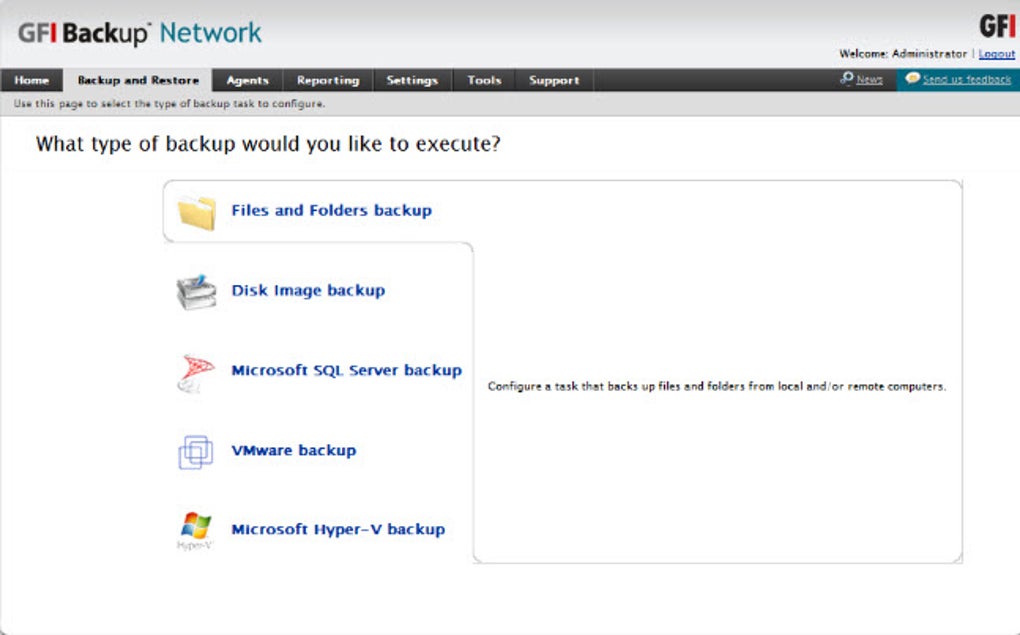
Getting started with GFI Backup is a breeze. Download the installer from the official website, then run the .exe file. The wizard guides you through a standard Windows installation: accept the license agreement, choose the destination folder (the default is C:\Program Files\GFI Backup), and decide whether you want a desktop shortcut. After installation, launch the application; the first screen presents a “Create New Backup Job” button that opens a step‑by‑step wizard.
During the wizard, you’ll select the source items (files, folders, Outlook data, registry keys, etc.), pick one or more backup destinations, and configure optional settings such as compression level, encryption password, and email notifications. The schedule tab lets you define when the job runs – you can set it to trigger at system startup, at a specific time each day, or after a defined interval. Once the job is saved, it appears in the main dashboard where you can start it immediately, edit settings, or view the latest log entries.
GFI Backup is built specifically for Windows platforms, supporting Windows 10, Windows 11, and Windows Server 2016/2019/2022 (both 32‑bit and 64‑bit). The installer automatically detects the appropriate architecture and installs the matching binaries. While the tool is Windows‑centric, you can still use it to back up data that resides on external devices formatted for macOS or Linux, as long as the device is mounted and recognized by Windows.
For power users, the command‑line interface (CLI) can be accessed via gfi-backup.exe /run /job:, allowing integration with task scheduler or third‑party automation tools. The CLI also supports silent installation switches, making it suitable for enterprise roll‑outs across multiple machines. Overall, the installation process takes less than five minutes, and the intuitive UI ensures that even non‑technical users can create robust backup strategies without consulting a manual.
Pros, Cons, FAQ & Conclusion
Pros
- Free, no hidden fees or subscription model.
- All‑in‑one solution for backup and folder synchronization.
- Strong encryption and compression to protect and shrink data.
- Highly configurable scheduling and multiple destination support.
- User‑friendly wizard makes setup quick for beginners.
- Command‑line options enable advanced automation.
Cons
- Limited to Windows; no native macOS or Linux client.
- Remote FTP is the only cloud‑type option; no direct integration with modern cloud storage services (e.g., OneDrive, Google Drive).
- Interface, while functional, feels dated compared to newer commercial backup suites.
Frequently Asked Questions
Can I back up Outlook emails with GFI Backup?
Yes. GFI Backup can include Outlook PST files in its backup set, ensuring that all your email messages, contacts, and calendar items are saved alongside your other files.
Is the backup data encrypted by default?
Encryption is optional but highly recommended. When you enable AES‑256 encryption, you will be prompted to set a strong password that protects the backup archive.
Can I schedule backups to run when my computer is idle?
Yes. The scheduler includes an “Run only if computer is idle” option, which prevents backup jobs from affecting performance during active use.
How much space does GFI Backup consume on the destination drive?
The storage requirement depends on the amount of data you back up and the compression level you select. Typically, compression reduces the backup size by 30‑50%.
Is there a way to restore individual files without reinstalling the entire backup?
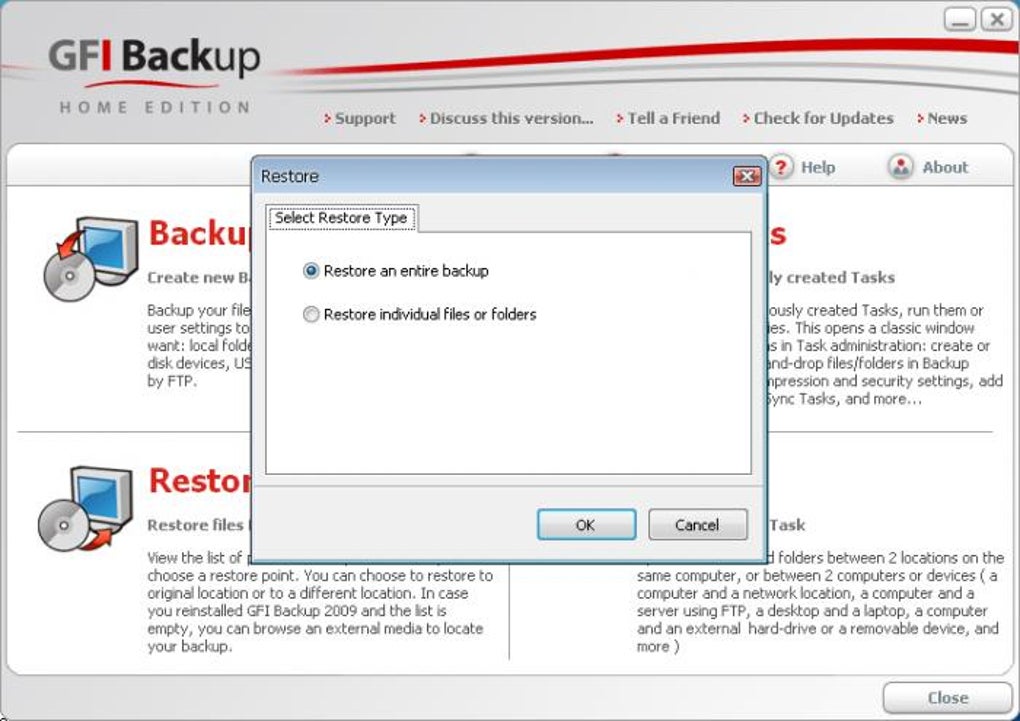
Absolutely. The restore wizard lets you browse the backup archive, select specific files or folders, and restore them to their original location or a new directory of your choice.
Conclusion & Call to Action
GFI Backup delivers a solid blend of features, security, and ease‑of‑use that makes it an excellent choice for Windows users seeking a free backup solution. While it lacks native cloud integration and a modern visual design, its core capabilities—full‑system backup, strong encryption, flexible scheduling, and reliable folder syncing—cover the essential needs of both home users and small businesses. By automating the backup process, GFI Backup reduces the risk of catastrophic data loss and gives you peace of mind that your critical files are always protected.
Ready to safeguard your data? Download GFI Backup now, set up your first backup job in minutes, and enjoy the confidence that comes with having a secure, up‑to‑date copy of everything that matters.







